Reduce file size with adjustable quality. Live preview with before/after comparison.
Low quality / smallHigh quality / large
Drop images here or click to browse
PNG, JPG, WebP supported
Compressed Results
Tested With ImageLab
Representative files processed with this compressor on March 18, 2026. Exact output sizes vary slightly by browser because JPEG and WebP encoders are not identical across engines, but the tradeoffs below are consistent.
Use this as a starting point, then confirm the result with your own images and display size.
Landscape photo
Original JPEG, 2400x1600, 3.4 MB
Takeaway: For photos, WebP at 80 to 85 is a strong default. JPEG 82 to 88 is still a safe fallback when compatibility matters more than absolute size.
JPEG 85-73%
918 KB
The lake reflection and sunset gradient stayed clean with only minor texture loss in the darker foreground.
WebP 80-80%
676 KB
Smaller than JPEG at a similar perceived quality, which makes it the better choice for most photographic web content.
Product shot
Original JPEG, 1800x1800, 2.1 MB
Takeaway: Product images usually tolerate moderate lossy compression well, but keep an eye on edge halos around packaging, text, and curved highlights.
JPEG 82-67%
684 KB
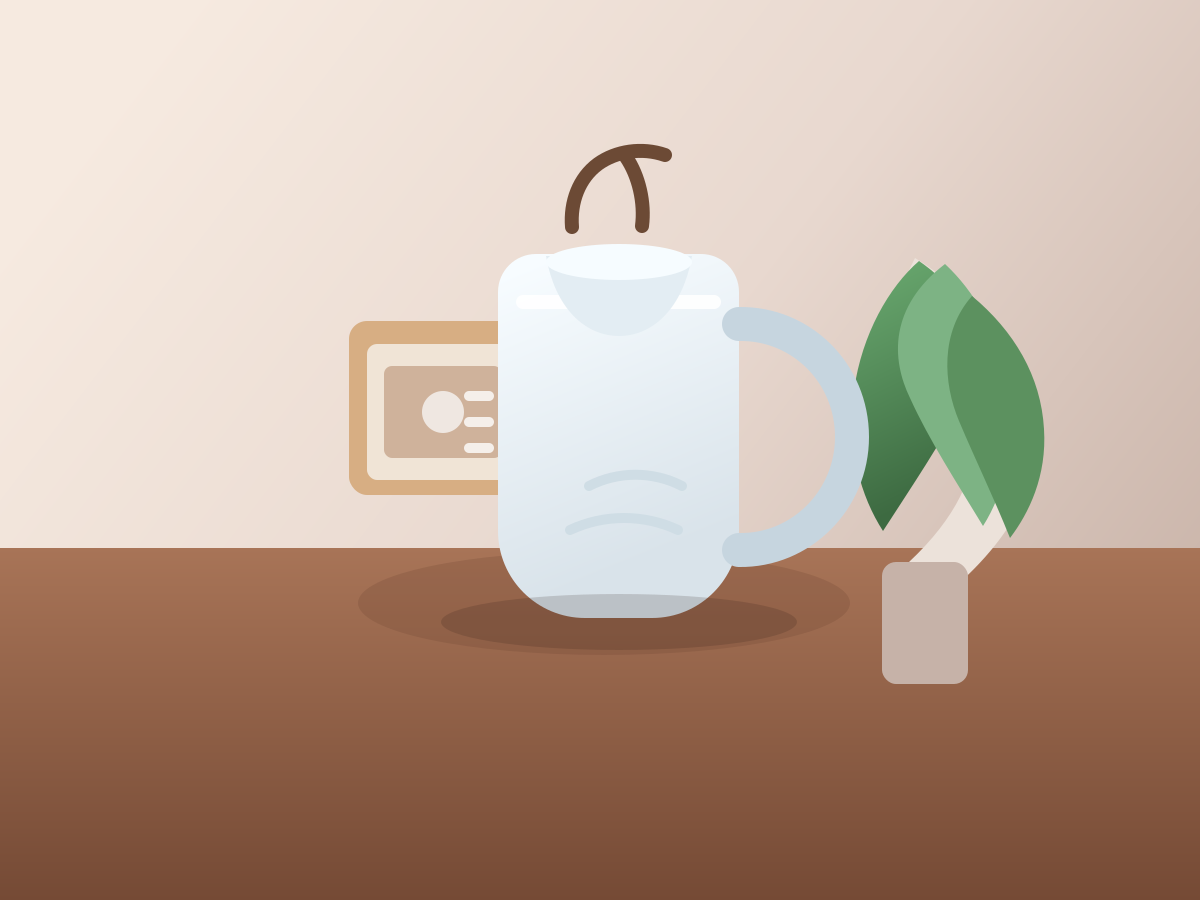
The mug and packaging stayed crisp enough for catalog use, with slight smoothing only in the subtle background texture.
WebP 80-75%
522 KB
Delivered the best size reduction while preserving clean product edges and soft studio-light gradients.
Dashboard screenshot
Original PNG, 1680x1050, 1.4 MB
Takeaway: Screenshots with text are where aggressive JPEG starts to fail. Use high-quality WebP or keep PNG when pixel-perfect interface detail matters.
JPEG 70-84%
224 KB
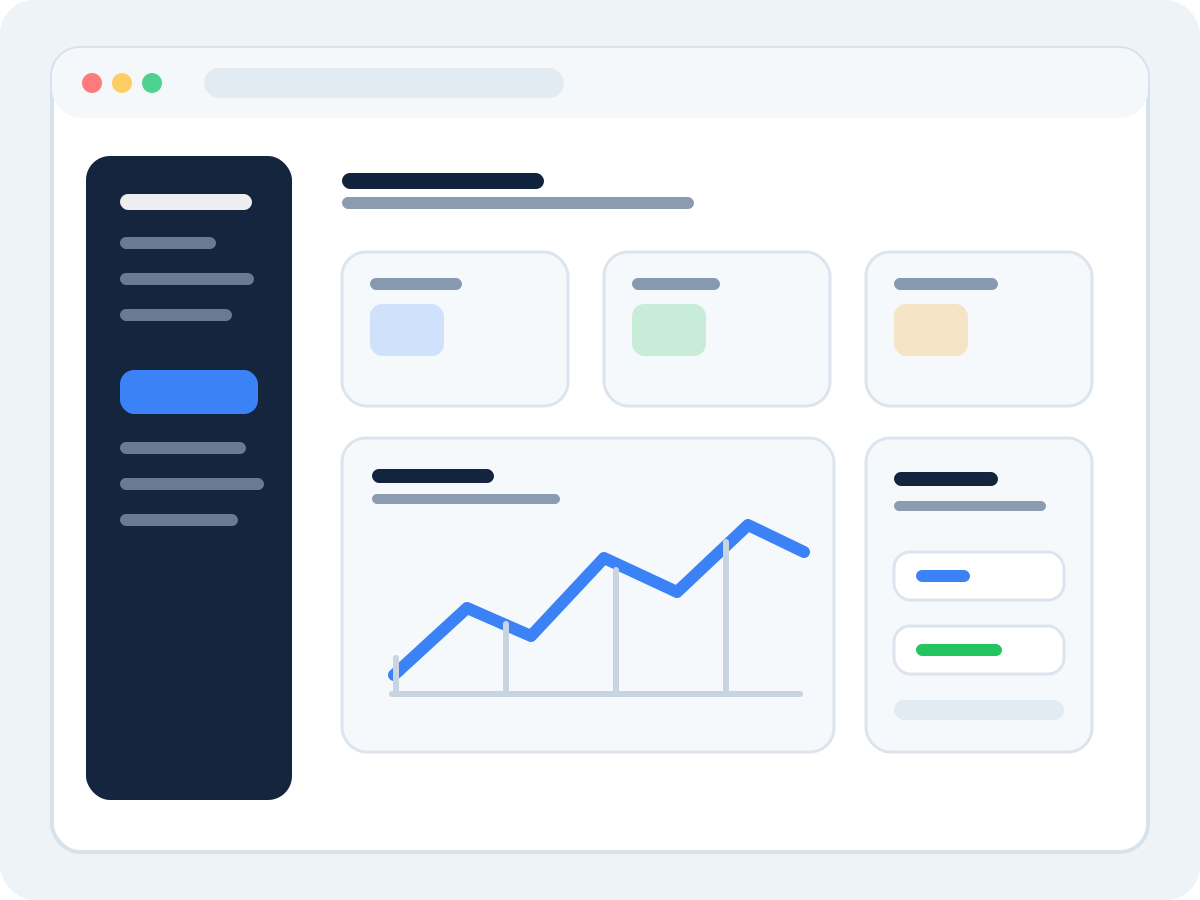
The file got very small, but chart lines softened and the sidebar labels picked up visible halos around sharp edges.
WebP 82-71%
412 KB
Sharper than JPEG at the same viewing size and a better fit for screenshots that still need meaningful size savings.
Image compression workflow
Compress large images before publishing to improve page load speed, storage efficiency, and user experience. This tool applies lossy compression to JPEG and WebP images with a live before/after preview so you can find the best quality-to-size tradeoff.
How to use this tool
Set your preferred quality level using the slider. Higher values preserve more detail; lower values produce smaller files.
Choose the output format. "Auto" keeps the same format as the input. Select JPEG or WebP to change format during compression.
Upload one or more images. The tool processes each image at the selected quality.
Review the before/after file sizes and visual previews for each image.
Adjust the quality slider and images are re-processed automatically.
Download the optimized images individually or as a ZIP archive.
Best-practice tips
Start at 82–90% quality for hero images and product photos. This is where the best file size savings occur with minimal visible quality loss.
Use stronger compression (65–80%) for thumbnails and gallery previews where images are displayed at small sizes.
Re-check images containing text, charts, or line art — lossy compression produces visible artifacts around sharp edges at lower quality settings.
WebP output is typically 20–30% smaller than JPEG at the same quality setting. If your site supports WebP, switch the format dropdown to WebP for extra savings.
The savings percentage shown is relative to the original file. Aim for at least 40–60% savings on photographic content without visible quality loss.
Privacy note
ImageLab processes files locally in your browser. Files are not uploaded to our servers, which is
useful for sensitive screenshots, internal product images, and personal photos.
Common questions
What quality setting should I use?
For web use, 80–90% is a good starting point for most photographs. This produces files that are 50–75% smaller than the originals with minimal visible quality loss. For thumbnails or preview images, 65–80% is reasonable. Below 60%, blocky JPEG artifacts become visible in most images.
Does this tool compress PNG images?
PNG is a lossless format and cannot be compressed with a quality slider without converting it to a lossy format. If you upload a PNG, use the format dropdown to select JPEG or WebP to apply lossy compression. To keep lossless PNG output, use the Format Converter instead.
Will compressing reduce the image dimensions?
No. This tool only adjusts compression quality — the output image has the same pixel dimensions as the input. To resize images, use the Resize & Crop tool.
Can I see what the compressed image looks like before downloading?
Yes. The tool shows a preview of the compressed image alongside the original file size and compressed file size so you can judge quality and savings before downloading.